

Feature Release Version: 2025.6 build 8612
Release Date: June 2025
Applies to: macOS
Feature Release Version: 2025.10 build 8835
Release Date: October 2025
Applies to: Windows
Nearly any keyboard shortcut in the program can be customized, and shortcuts can now be assigned to functionality that never had a shortcut assigned to it before.
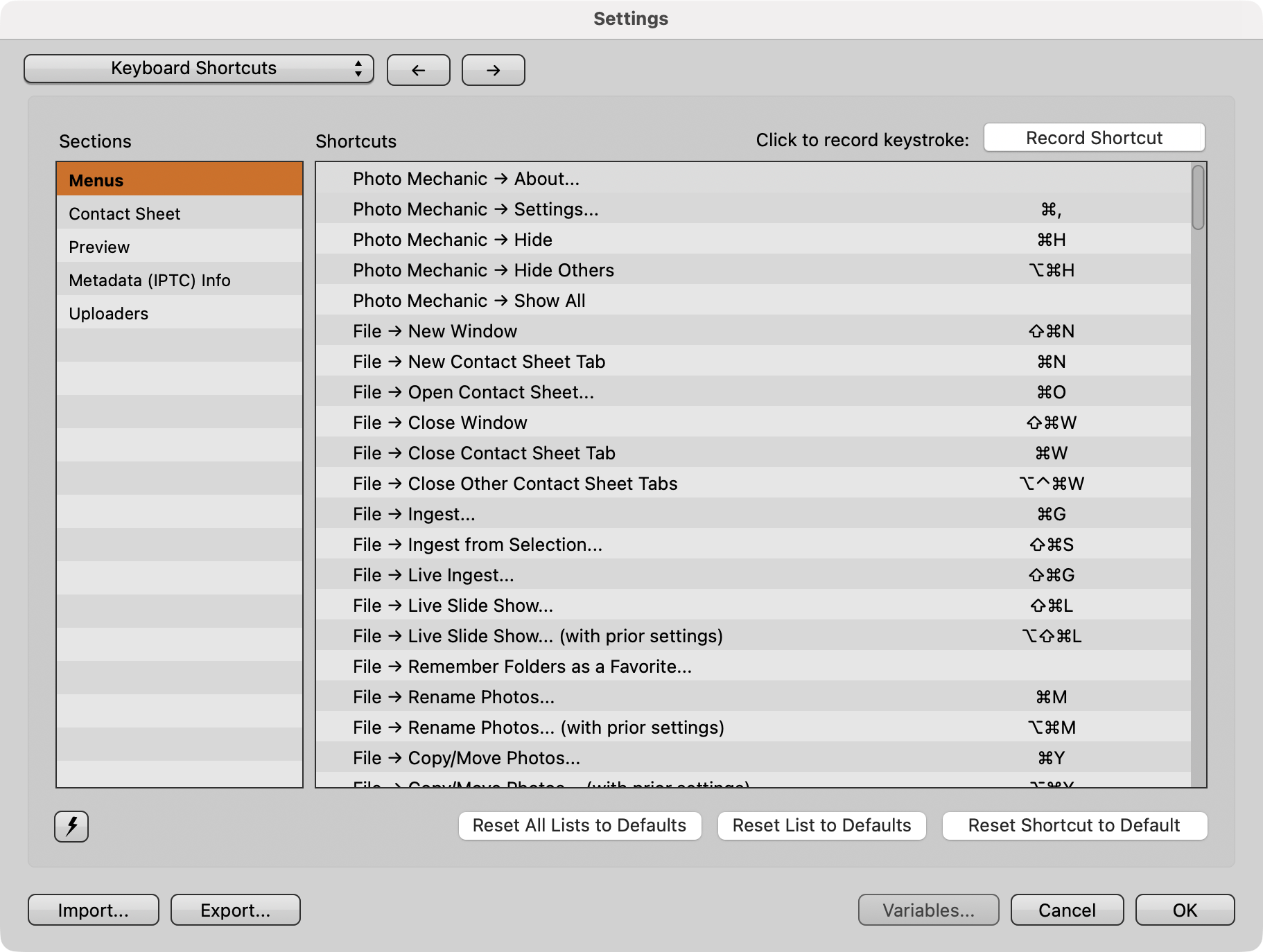
Keyboard Shortcut Settings on macOS
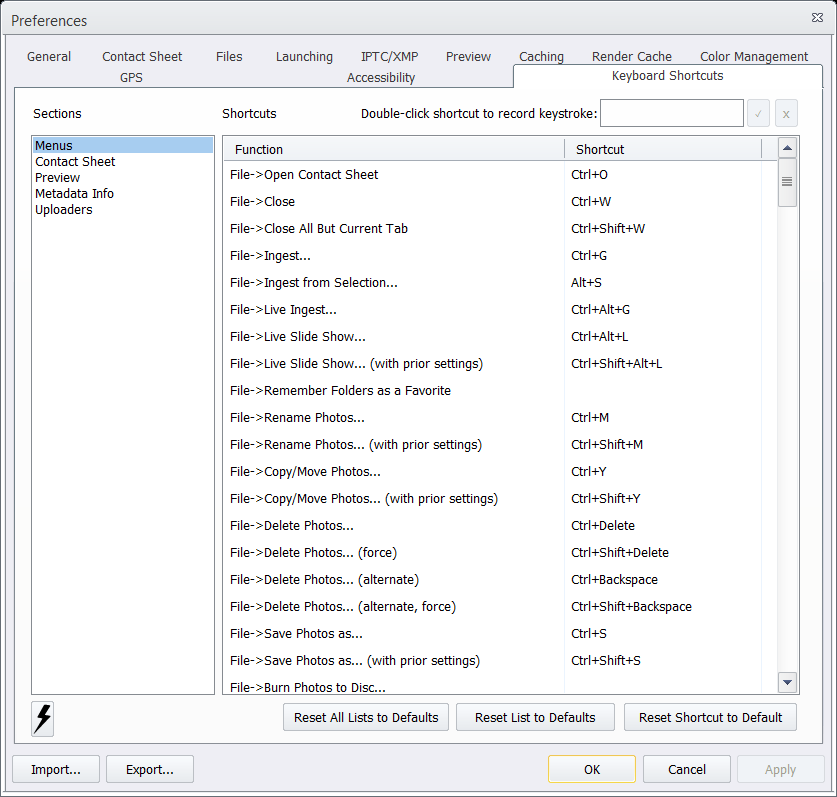
Keyboard Shortcut Preferences on Windows
How to Customize Keyboard Shortcuts
Navigate to "Keyboard Shortcuts" in Settings (on macOS) or Preferences (on Windows)
(macOS) Select Keyboard Shortcuts from the dropdown menu at the top left of the Settings window
(Windows) Select the Keyboard Shortcuts tab at the top of the Preferences window.
Choose the Section for the area of the program whose shortcuts you'd like to customize
Menus: the shortcuts for any menu that appears in the top menu bar (File, Edit, Image, etc.).
Contact Sheet: Any of the Contact Sheet functionality that is not explicitly available in the menus (i.e. changing Star Rating or Color Label filters, or setting Star Ratings or Color Labels on single images.
Preview: Any of the Preview window functionality not explicitly available in the menus.
Assign or Change a Shortcut
- (macOS) Select the shortcut you wish to change from the list of shortcuts.
- (macOS) Select the button above the Shortcuts list (titled Record Shortcut in the macOS screenshot above): if the function you've selected already has a shortcut associated with it, the button will show the current shortcut.
- (Windows) Double click a shortcut then record a new keystroke
Press the desired key combination (e.g.,
CMD + Shift + S).The program will inform you about any conflicts, and will prevent you from setting any shortcut that will conflict with another in that section of the program.
Snapshots
Snapshots for custom keyboard shortcuts were made available in Photo Mechanic 2026.01 build 9024.
Windows and Mac versions of Photo Mechanic include different default snapshots, as Windows allows a 10-key keypad to function independently of the number row.
The default Snapshots in the macOS version are:
- [Lightroom Classic]
- [Numbers set Color Classes]
- [Numbers set Star Ratings]
The default Snapshots in the Windows version are:
- [Number Row sets Color Classes - Number Pad sets Ratings]
- [Number Row sets Ratings - Number Pad sets Color Classes]
- [Numbers set Color Classes]
- [Numbers set Star Ratings]
- [Lightroom Classic]
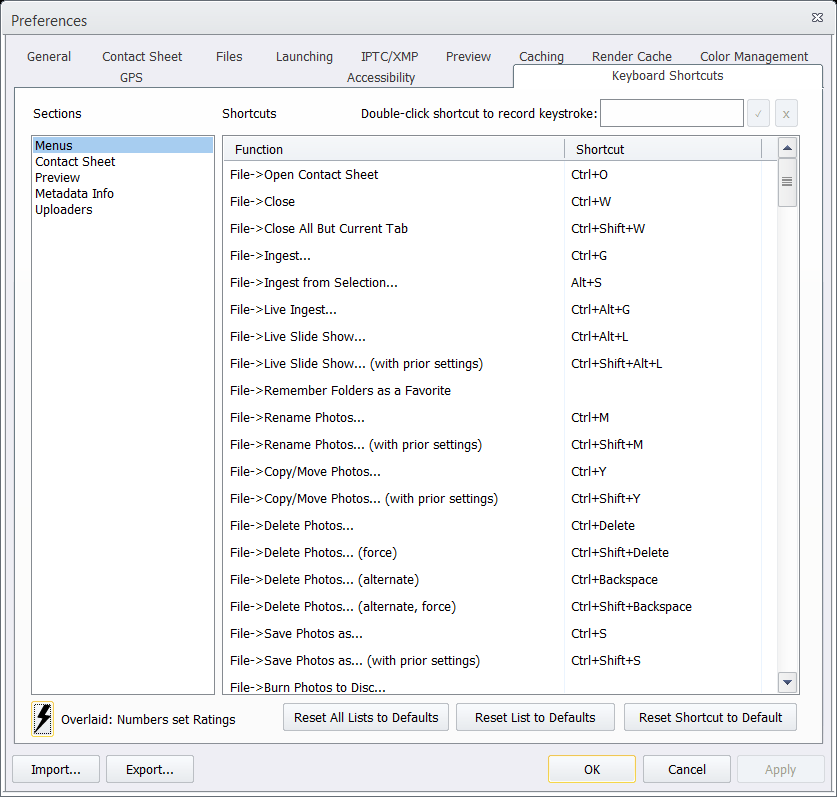
After a Snapshot is selected, the name of the Snapshot will appear to the right of the lightning bolt Snapshot button, as seen in the screenshot below.
Tips & Best Practices
The Contact Sheet and Preview windows share quite a bit of functionality, and that functionality often has the same shortcut in both areas of the program, but shortcuts for each window must be set separately.
Example: By default, the square bracket keys, '[' and']', rotate your images 90 degrees counter-clockwise and clockwise, respectively, in both the Preview and Contact Sheet windows. If the shortcuts for these functions are changed to '-' and '=' in the Contact Sheet section, '[' and ']' will still rotate your images in the Preview window.
Changes are saved as soon as the shortcut is recorded (as long as there are no conflicts).
The buttons below the list allow for resetting the selected shortcut - Reset Shortcut to Default, the entire section's list - Reset List to Defaults, or all lists' shortcuts back to their default setting - Reset All Lists to Defaults.
While modifying a shortcut that is currently set, an 'X' will appear in the customization button. Select the 'X' to remove the shortcut from that functionality. If you have a conflict when setting a shortcut, do this to clear out the conflicting shortcut if you don't want to set a different shortcut to that functionality.
This video shows how to enable single-key shortcuts for rating images